How to set up Find My Device on Android
Find My Device lets you locate a lost phone, lock it remotely, or wipe all your data if it is stolen, before anyone can access your accounts.
Track every step. Sign up free to tick off tasks and see your Security Score improve.
Get my free Dashboard →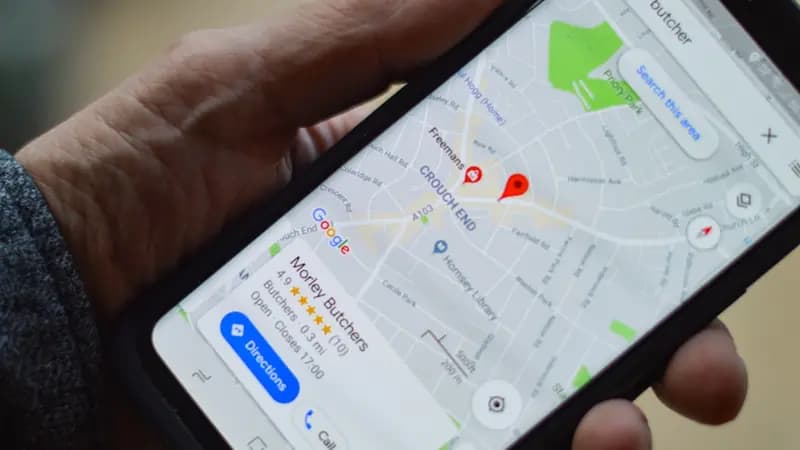
Cyber Nova AI helps you prepare for Cyber Essentials. It doesn't award or certify it. Follow the steps here to get ready, then apply for certification through an accredited Cyber Essentials body when you're set.
Steps
Open the Settings app.
Tap Security (or search "Find My Device" in the Settings search bar).
Tap Find My Device.
Make sure the toggle is switched on (blue).
To test it, open android.com/find in a browser and sign in with your Google account.
You should be able to see your phone's location on the map.
How to confirm it worked
- The Find My Device toggle shows as On.
- Your device appears at android.com/find when you sign in with your Google account.
Troubleshooting
- My phone does not appear on Find My Device.
- Make sure the phone is signed in to a Google account, has mobile data or Wi-Fi turned on, and has location services enabled.
Track your security progress. Free.
Create a free account to tick off tasks, see your Security Score improve, and know exactly what you've done and what's still to do.
Start your free security check