How to set a strong screen lock on your phone
Reading is great. Tracking makes it stick. Sign up for a free Dashboard to tick off tasks and see your Security Score.
Get my free Dashboard →Cyber Nova AI helps you prepare for Cyber Essentials. It doesn't award or certify it. Follow the steps here to get ready, then apply for certification through an accredited Cyber Essentials body when you're set.
About 5 minutes to complete
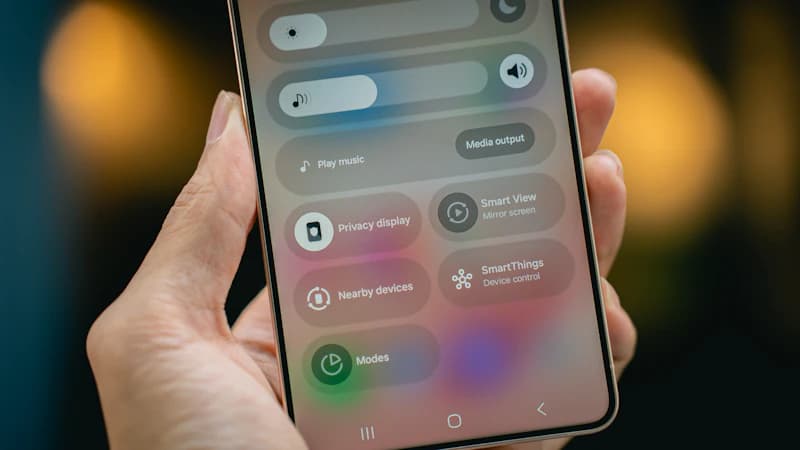
Set a PIN, password, or biometric lock on your phone so that no one can access it if it is lost or stolen. A screen lock is the single most important protection on a mobile device.
Step-by-step guide
5 steps
Why this matters
Your phone contains your email, banking apps, photos, and the ability to reset almost every other account you own. Without a screen lock, anyone who picks up your phone has immediate access to all of it. A strong PIN or biometric lock takes thirty seconds to set up and is the most impactful single step you can take for phone security.
How to confirm it worked
- The setting is saved and active on your device
- You have tested it works before closing the page
Tick this task off in your Dashboard to update your Security Score.
Frequently asked questions
Is a PIN strong enough, or do I need a password?
A 6-digit PIN is good enough for most people. Avoid obvious patterns such as 123456, 000000, or your birth year. If you want stronger protection, use an alphanumeric password; a 6-digit random PIN combined with Face ID or fingerprint is a practical, secure choice for everyday use.
Is Face ID or fingerprint unlock safe?
Biometric unlock (Face ID, fingerprint) is safe and convenient for everyday use. It protects you from casual access: someone picking up your phone cannot unlock it without your face or fingerprint. Always set a PIN as a backup, since biometrics can fail in certain conditions such as wet hands or bright sunlight.
What happens if someone forces me to unlock my phone?
On iPhones, press the side button and either volume button five times to trigger Emergency SOS; this also temporarily disables Face ID and requires a PIN instead. On many Android phones, rapidly pressing the power button five times triggers a similar lockdown. Check your phone's emergency settings to see what is available on your device.
Should I use the same PIN for my phone and my bank card?
No. Use a different PIN for each. If someone sees you enter your bank card PIN, you do not want that same number to unlock your phone, and vice versa.
Want a device-specific walkthrough?
Related security tasks
Track your security score for free
Create a free Cyber Nova AI account to tick off tasks like this one, see your Security Score, and stay on top of what you've done and what's still to do.
Start your free security check