Lock down AirDrop and Bluetooth
AirDrop and Bluetooth are useful, but left wide open they let strangers nearby send you files or try to connect. Two quick settings keep them convenient without leaving the door open.
Reading is great. Tracking makes it stick. Sign up for a free Dashboard to tick off tasks and see your Security Score.
Get my free Dashboard →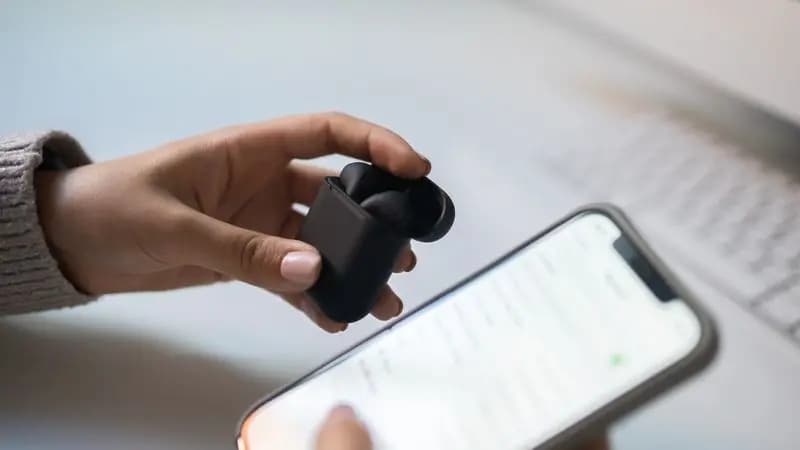
Cyber Nova AI helps you prepare for Cyber Essentials. It doesn't award or certify it. Follow the steps here to get ready, then apply for certification through an accredited Cyber Essentials body when you're set.
Set AirDrop to Contacts Only
Go to Settings, then General, then AirDrop, and choose Contacts Only, or Receiving Off when you're out and about. On the Everyone setting, anyone nearby can send you a file, which is how unwanted or shocking images get sent to strangers in public. If you set it to Everyone briefly to receive something, switch it back afterwards.
Only pair Bluetooth devices you trust
In Settings, then Bluetooth, review the list of paired devices and remove any you don't recognise or no longer use. Only pair with devices you own, and be cautious of pairing requests you weren't expecting.
Turn them off when not needed
If you're not using them, turning AirDrop and Bluetooth off saves a little battery and removes the connection entirely. Note that switching Bluetooth off in Control Centre only disconnects until the next day, to turn it off fully, use the Settings app.
Track your iPhone security progress. Free.
Create a free account to tick off tasks, see your Security Score improve, and know exactly what you've done and what's still to do.
Start your free security check