A 10-minute iPhone security check
Set your iPhone up a while ago? This quick check confirms the important protections are still on. It takes about ten minutes and needs no technical knowledge.
Reading is great. Tracking makes it stick. Sign up for a free Dashboard to tick off tasks and see your Security Score.
Get my free Dashboard →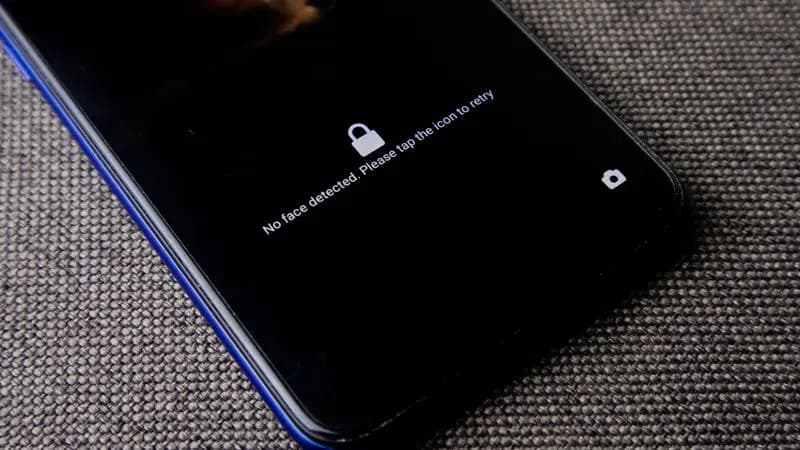
Cyber Nova AI helps you prepare for Cyber Essentials. It doesn't award or certify it. Follow the steps here to get ready, then apply for certification through an accredited Cyber Essentials body when you're set.
1. Passcode (2 minutes)
Go to Settings, then Face ID & Passcode. If your passcode is only four digits, tap Change Passcode and switch to a six-digit or longer code. This is the lock on everything else.
2. Face ID or Touch ID (1 minute)
On the same screen, confirm Face ID (or Touch ID) is set up. It keeps a strong passcode convenient so you're never tempted to weaken it.
3. Apple Account two-factor (2 minutes)
Tap your name at the top of Settings, then Sign-In & Security. Confirm two-factor authentication is on. This is the single biggest protection for your Apple Account.
4. Updates (2 minutes)
Open Settings, then General, then Software Update. Install anything waiting, then turn on Automatic Updates so you stay current automatically.
5. Find My iPhone (1 minute)
Tap your name, then Find My, and confirm Find My iPhone is on, along with Send Last Location. That way a lost phone can still be located even on low battery.
If anything was off
Just switch it on now, there's nothing to undo. Each of these has its own short guide in this section if you want the detail. Ten minutes here is the difference between a phone that protects itself and one that doesn't.
Track your iPhone security progress. Free.
Create a free account to tick off tasks, see your Security Score improve, and know exactly what you've done and what's still to do.
Start your free security check