Set a short auto-lock
A passcode only protects you once the phone actually locks. If your iPhone stays awake for minutes after you set it down, anyone nearby can pick it up and get straight in. A short auto-lock closes that window.
Reading is great. Tracking makes it stick. Sign up for a free Dashboard to tick off tasks and see your Security Score.
Get my free Dashboard →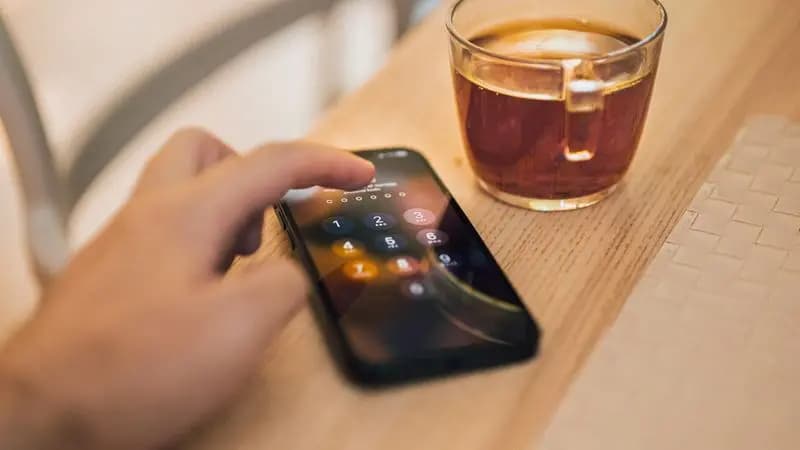
Cyber Nova AI helps you prepare for Cyber Essentials. It doesn't award or certify it. Follow the steps here to get ready, then apply for certification through an accredited Cyber Essentials body when you're set.
Set it to 30 seconds
Go to Settings, then Display & Brightness, then Auto-Lock, and choose 30 Seconds. Now, seconds after you stop using it, the phone locks and needs Face ID or your passcode again.
It barely affects you
With Face ID, unlocking is instant, so a short auto-lock costs you almost nothing day to day while protecting you whenever the phone leaves your hand. If 30 seconds feels too quick while reading, try it for a week, most people stop noticing.
Check Raise to Wake and notifications
While you're here, it's worth deciding how much shows on the lock screen. Under Settings, then Notifications, then Show Previews, choosing When Unlocked hides message contents until you unlock, so a glance at your locked phone doesn't reveal private messages.
Track your iPhone security progress. Free.
Create a free account to tick off tasks, see your Security Score improve, and know exactly what you've done and what's still to do.
Start your free security check