Choose a strong iPhone passcode
Your passcode is the master key to your iPhone. A four-digit PIN can be watched over your shoulder or guessed. A longer code is far harder to crack and only takes a moment to set.
Reading is great. Tracking makes it stick. Sign up for a free Dashboard to tick off tasks and see your Security Score.
Get my free Dashboard →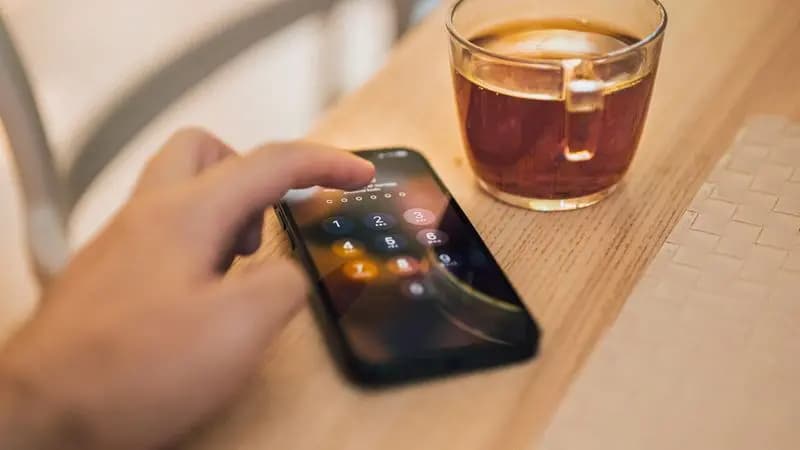
Cyber Nova AI helps you prepare for Cyber Essentials. It doesn't award or certify it. Follow the steps here to get ready, then apply for certification through an accredited Cyber Essentials body when you're set.
Upgrade your passcode
Go to Settings, then Face ID & Passcode, enter your current code, then tap Change Passcode. On the new-passcode screen, tap Passcode Options and choose Custom Numeric Code (six digits or more) or, stronger still, an Alphanumeric Code.
Make it memorable, not obvious
Avoid birthdays, 1234, or repeated digits. A short phrase or a set of unrelated numbers you'll remember works well. With Face ID doing the day-to-day unlocking, you rarely type it, so length costs you nothing.
Turn on Erase Data (optional)
Lower down the same screen is Erase Data, which wipes the phone after 10 wrong attempts. It's a strong protection if you carry sensitive information, though only turn it on if you're confident in your passcode and backups.
Track your iPhone security progress. Free.
Create a free account to tick off tasks, see your Security Score improve, and know exactly what you've done and what's still to do.
Start your free security check